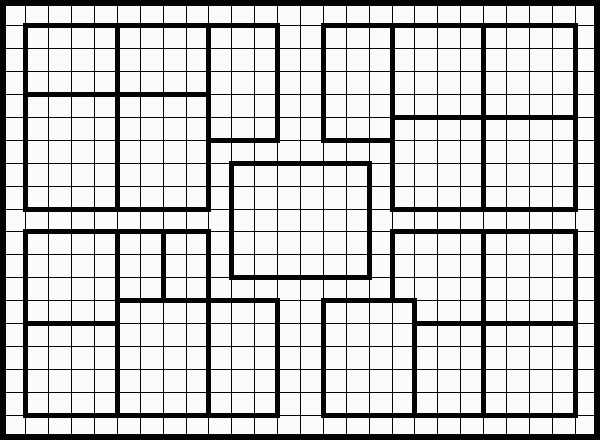
Welcome to Quest Generator
This tool allows you to create, edit, and share custom HeroQuest dungeon maps. You can design the
layout from scratch, place furniture and monsters, and print or save your creations.
Basic Workflow
- Design Layout: Use the Map Maker to paint rooms and corridors.
- Generate: Use the Generate New Quest button to auto-populate
items, or
clear the board.
- Customize: Use Edit Placed Items to move, rotate, or delete
objects.
- Save/Share: Use the Vault to save locally or share with the
community.
Map Maker Mode
Create your custom dungeon layout by painting tiles onto the grid.
How to Use
- Click Enter Map Maker to start.
- Select a tile from the Tile Library on the left.
- Left-Click on the board to paint the selected tile.
- Right-Click to erase a tile.
- Use the Scroll Wheel to rotate the tile before placing.
Tracing
If you have a background image loaded (e.g., the original board), the editor adds a transparency
layer so you can trace over it accurately.
Quest Editor
Fine-tune the contents of your dungeon by placing and modifying individual items.
Edit Controls
- Move: Left-Click and Drag an item to move it.
- Rotate: While dragging, scroll the Mouse Wheel to rotate
90
degrees.
- Delete: Right-Click any item to remove it.
Asset Library
Open the Asset Library to drag and drop new Monsters, Furniture, Doors, and
Walls
into your dungeon.
Vault System
My Vault (Local)
Saves your quests to your browser's local storage.
- Save: Click "Save to Local" to store your current work.
- Load: Open "My Vault" and click a quest to load it.
Community Vault (Online)
Share your creations with other users!
- Share: Click "Share Quest" to upload to the public database.
- Play: Browse the Community Vault to play quests made by others.
Controls Reference
| Action |
Input |
| Paint Tile |
Left Click |
| Erase Tile |
Right Click |
| Move Item |
Left Drag |
| Rotate Item |
Mouse Wheel (while dragging) |
| Delete Item |
Right Click |
| Pan Preview |
Left Drag (in Vaults) |
Account & Profile
Create an account to share quests and rate community content.
- Login/Register: Use email to create a secure account.
- Profile: Click your avatar in the menu to edit your Display Name and Bio.